Honeywell Home thermostats don’t share one programming routine. The buttons and menus depend on the model, so the quickest route is to find your model number, match it to a family below, and follow those steps. The idea behind a weekly schedule is the same everywhere: up to four periods a day, each with a start time and a target temperature.
In short
- Your model number is usually on the back of the detachable faceplate, on the packaging, or in the printed literature.
- Programmable models use four daily periods: Wake, Away, Home and Sleep. Older models call them Wake, Leave, Return and Sleep.
- Depending on the model, you set one schedule for weekdays and one for weekends, or set each day separately.
- Save from the prompt on your own screen. Depending on the model, that is Run, Done, Save & Exit or Home.
This guide covers Honeywell Home thermostats sold in the US and Canada. UK and European heating controls use different menus and aren’t covered here.
Before you start
Find your model number
Honeywell says that on most thermostats the model number is on the back of the detachable faceplate. It is also on the packaging and in the literature that came in the box. For some Wi-Fi products the same page gives no separate model-number location, so check the box, the paperwork or Honeywell’s user guide finder.
If you detach the faceplate, pull it away gently. If you see exposed wiring, don’t touch or disconnect anything. Put the faceplate back and call your installer.
Honeywell Home thermostats are made by Resideo and sold under the Honeywell Home name under licence, which is why the manuals and support pages sit on honeywellhome.com and resideo.com.
Check which weekly layout your model offers
| Model or family | Weekly layout |
| RTH2300 | One schedule for Monday to Friday and one for Saturday and Sunday |
| RTH221 | One schedule that applies to all seven days |
| TH4110D, TH4210D, TH4110B | Weekday periods first, then weekend periods |
| TH6110D1005, TH6220D, TH6320U100 | Weekday periods first, then weekend periods |
| T6 Pro programmable (TH6320U2008, TH6220U2000, TH6210U2001) | Choose a day or a group of days, four periods each |
| T4 Pro (TH4110U2005, TH4210U2002) | Seven-day schedule, or a different weekend |
| T5, T5+ and T6 Pro Wi-Fi | Each day separately, every day the same, or weekdays and weekends |
| T10 and T10+ Pro | Grouped days, single days, or weekdays and weekends |
| FocusPRO P200 | Four periods a day, days grouped or individual depending on setup |
If your model isn’t listed, see Other models below.
Set the clock and system mode first
A schedule follows the thermostat’s own clock, so confirm the time and day are right before you start. Wi-Fi models that are registered to a Resideo account set the time and date automatically.
On push-button models you program heating and cooling separately. Put the system switch on Heat to set heating temperatures and on Cool to set cooling temperatures, then repeat the schedule for the other mode if you use both.
Know the four periods
- Wake: the time you get up and the morning temperature, until you leave.
- Away (or Leave): the time you go out and a lower or higher energy-saving temperature while the home is empty.
- Home (or Return): the time you come back and the evening temperature, until bedtime.
- Sleep: bedtime and the overnight temperature, which is usually an energy-saving setting.
Honeywell’s FocusPRO guide describes the periods this way. Older push-button manuals use the Leave and Return labels.
Steps by model family
The steps below are paraphrased from Honeywell’s support articles and guides, checked on 30 November 2026. If your screen shows something different from a step, stop and check your model’s user guide.
RTH2300 and RTH221 push-button models (2000 family)
- Set the system switch to Heat or Cool, depending on which schedule you’re programming.
- Press Set until Set Schedule appears. The start time of the first period (Wake) flashes.
- Press the up or down button to set the time, then press Set.
- The temperature flashes. Adjust it, then press Set.
- The next period’s start time flashes. Repeat steps 3 and 4 for each remaining period.
- On the RTH2300, the same sequence continues from the weekday periods (Mo–Fr) to the weekend periods (Sa–Su). The RTH221 has a single schedule for all days.
- Press Run to save and exit. Honeywell also says changes save if no button is pressed for 60 seconds.
To skip a period other than Wake, press and hold Hold for four seconds while that period is on screen. To bypass the schedule for now, press Hold on the main screen.
TH4110D, TH4210D and TH4110B (4000 family)
- Set the thermostat to the mode you want to schedule, Heat or Cool.
- Press Set until the schedule-setting screen appears.
- Set the weekday (Monday to Friday) Wake time with the arrows, then press Set.
- Set the temperature for that period, then press Set.
- Set the time and temperature for the next period (Leave), and repeat for each weekday period.
- Press Set to move to the weekend periods (Saturday and Sunday), then press Run to save and exit.
To remove an unwanted period, hold the up arrow and Hold together for four seconds in Set Schedule mode. This works on every period except Wake. Source: Honeywell Home support.
TH6110D1005, TH6220D and TH6320U100 (6000 family)
- Press Set Clock/Day/Schedule, then choose Set Schedule.
- Set the weekday Wake time with the up and down buttons, then press Next.
- Set the temperature for that period, then press Next.
- Repeat for each remaining weekday period.
- Press Next to reach the weekend periods, set them the same way, then press Done to save and exit.
Honeywell’s article says nothing about skipping periods or selecting Heat or Cool for these models. Check your user guide for those. Source: Honeywell Home support.
T6 Pro programmable (TH6320U2008, TH6220U2000, TH6210U2001)
- Press Menu. PROG appears. Press Select. ON appears.
- To run without a schedule, switch to OFF with the arrow buttons and press Select. Otherwise press Select again.
- Choose the day or group of days you want to edit, then press Select.
- Choose a period (Wake, Away, Home or Sleep), then press Select.
- For each period, adjust the time, the temperature, or whether the period is on, using the arrows. Press Select to keep a value and move on.
- When every period on every day is set, press Home to save.
You can return to the same menu later to adjust the schedule or turn it on or off. Source: Honeywell Home T6 Pro product information sheet.
Honeywell supplies these factory pre-sets and recommends them because they can reduce heating and cooling costs:
| Period | Start | Heat | Cool |
| Wake | 6:00 am | 70°F | 78°F |
| Away | 8:00 am | 62°F | 85°F |
| Home | 6:00 pm | 70°F | 78°F |
| Sleep | 10:00 pm | 62°F | 82°F |
T4 Pro (TH4110U2005, TH4210U2002)
- Open Menu and choose Schedule.
- Pick a day and period to edit.
- Set the start time. Times change in 15-minute steps.
- Set the heating or cooling target. Select the temperature again to switch between the two.
- Confirm the period and repeat for the others.
- When Done appears, select it to save.
To change a schedule later, go back to Menu and Schedule, move to the period you want, edit it, and save again at Done. If your screen offers a different save control, such as Home, use the prompt on screen and check your T4 Pro user guide. Source: Honeywell Home support.
T5, T5+ and T6 Pro Wi-Fi
- Press Menu and choose Schedule.
- Choose the day and period, then press Select.
- Use the plus and minus icons to set the start time.
- Touch the temperature to set the heating or cooling target. Touch it again to switch between the two.
- Press Select to finish the period.
- When every day and period is set, Done appears. Press Select to save.
On these models you can have up to four periods per day, set separately for each day of the week, or repeat daily, or use a weekday and weekend pattern. Geofencing and the other advanced options are set in the mobile app, not on the thermostat. Source: Honeywell Home support.
T10 and T10+ Pro
- From the home screen, open the Menu icon and choose Schedule.
- Choose a layout: Grouped Days (the same every day), Single Days, or the weekday and weekend option.
- Touch a period to edit it, or touch Create New Schedule and follow the prompts.
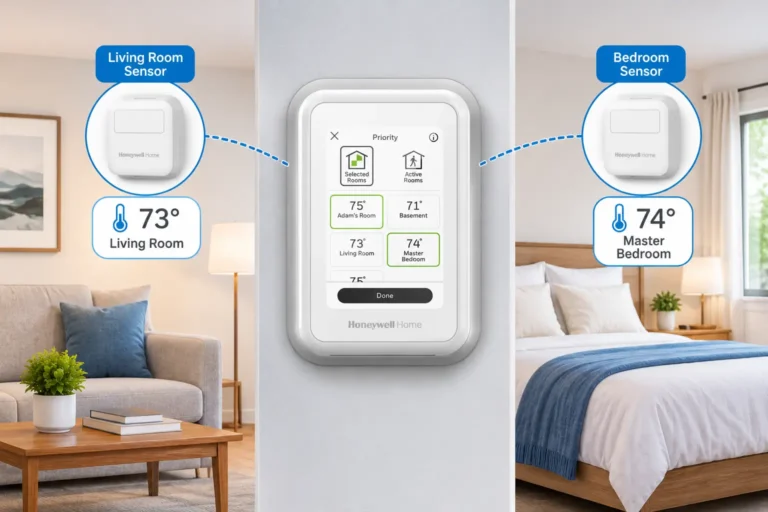
- For each period, set the start time, the sensors to use (Priority), the heat and cool temperatures, and the fan setting (On, Auto or Circ).
Geofencing can’t be set from the thermostat and has to be set up in the app. Source: Honeywell Home T10 and T10+ Pro product data.
FocusPRO P200 (TH2110U4004, TH2320U4006)
- Press Menu, then use the arrows to reach SCHED.
- Select ON to use a schedule, then press Select to edit it.
- Select the flashing day or days to edit.
- For each period, press Next to choose whether it is on or off, then set its time, Heat setpoint and Cool setpoint, pressing Next after each.
- Repeat for the remaining periods and days, then press Save & Exit at the upper left.
Source: Honeywell FocusPRO P200 user manual.
Other models
Honeywell keeps a schedule help index that points to guides by family. It lists the 9000 and VisionPro, 8000, Lyric T, 7000, 6000, 4000 and 2000 families, plus a video for the Lyric Round. Open the guide and check that its cover lists your exact model before you follow it.
Choose times and temperatures that suit the home
The US Department of Energy says turning a thermostat back 7°F to 10°F for 8 hours a day can save up to about 10% a year on heating and cooling. Savings are larger in milder climates. Its other scheduling tips:
- In winter, aim for roughly 68°F to 70°F while you’re awake and lower it when you’re asleep or away.
- Base the schedule on when people normally sleep and wake. If you like a cooler bedroom, start the setback before bedtime.
- Set back during any stretch of four hours or more when nobody’s home.
- Allow for everyone’s routine, not just your own.
Some systems need extra care:
- Heat pumps: the same DOE page says standard programmable thermostats are generally not recommended for heat pumps in heating mode. A deep setback can make the system run inefficiently and cancel out the savings. A moderate, steady setting is usually the most cost-effective. If you have a heat pump, check your thermostat’s guide before setting a big setback.
- Steam and radiant floor heating: these respond slowly. The DOE suggests starting the cool-down early and restoring the normal temperature 2 to 3 hours before you wake or arrive home.
- Cooling: setting the thermostat colder than normal when you switch on the air conditioning won’t cool the home faster and can overcool it.
The pre-sets in the T6 Pro table above are a reasonable starting point. Adjust the start times to match when your household actually leaves, returns and sleeps.
Override the schedule without erasing it
Most models let you change the temperature for a while without touching the programmed schedule.
- Temporary hold: on FocusPRO P200 models the new setting holds until the next scheduled period starts. Press Hold to reach Cancel Hold if you want to end it sooner.
- Permanent hold: on the same models, change the temperature, press Hold to reach Hold Permanently, then save. It stays until you cancel it.
- T5, T5+ and T6 Pro Wi-Fi: a temporary hold lasts until the next schedule change or a time you set. A permanent hold stays until you change it, and it isn’t available while geofencing is on.
- 2000 family: press Hold on the main screen to bypass the schedule.
A permanent hold quietly switches off the schedule, so cancel it when you want the program back.
Wi-Fi models, the app and geofencing
Wi-Fi models let you set and change schedules from the Honeywell Home app (Honeywell also refers to it as the Resideo app). Honeywell says location-based control, or geofencing, uses your smartphone’s location to save energy when you leave and to have the home comfortable on return. On T5, T5+, T6 Pro Wi-Fi and T10 models, geofencing is set up in the app, not on the thermostat. On T10 and T10+ Pro, a manual temperature change stays in effect until you cross the geofence boundary.
If the schedule isn’t running as expected
These are user-level checks only. Don’t open the equipment or change wiring.
- Is a schedule switched on? On the T6 Pro, the PROG option has to be ON. On the P200, SCHED has to be ON.
- Is a hold active? A temporary or permanent hold overrides the program. Cancel it using your model’s steps above.
- Did you program the right mode? On push-button models, Heat and Cool are programmed separately, so check you set the one you’re using.
- Is the clock right? A wrong time or day shifts every period.
- Is geofencing on? On supported Wi-Fi models, location-based control can take priority over, or restrict, the time-based options. Check the app.
- Did you save? Leave the schedule screen with the save prompt for your model (Run, Done, Save & Exit or Home).
If these checks don’t help, use the model’s user guide or contact Honeywell Home technical support on 1-800-633-3991. Honeywell lists hours of Monday to Friday 9am to 8pm CT, and Saturday and Sunday 9am to 5:30pm CT. For problems that involve wiring, a blank display or equipment that won’t start, call a qualified HVAC installer.
Sources
- Honeywell Home: How do I adjust the program schedule? (updated 2 September 2025)
- Honeywell Home: 2000 family schedule steps
- Honeywell Home: TH4210D, TH4110D, TH4110B
- Honeywell Home: TH6110D1005, TH6220D, TH6320U100
- Honeywell Home: TH4210U2002, TH4110U2005
- Honeywell Home: T5, T5+ and T6 Pro Wi-Fi
- Resideo: T6 Pro programmable product information sheet
- Honeywell Home: T10 and T10+ Pro scheduling
- Honeywell Home: FocusPRO P200 programming
- US Department of Energy: Thermostats