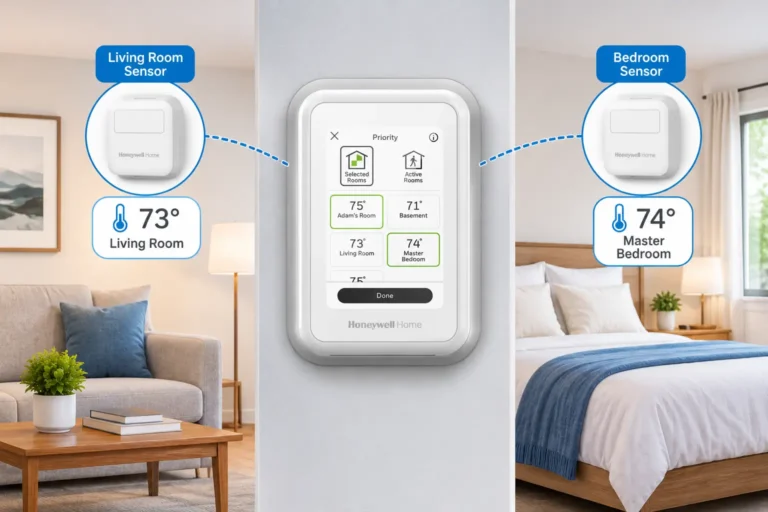
The Honeywell Home T5 can follow a time schedule, use your phone’s location (geofencing), or combine the two. You set a time schedule on the thermostat or in the app. Geofencing can only be set up in the app. Honeywell’s T5 support page says other scheduling options, such as geofencing, are in the mobile app.
To switch between them, open the schedule screen in the app and look for an Options menu. Details and a caveat about the exact wording are below.
Time schedule or geofencing: which should you use?
| Time schedule | Geofencing | |
| What controls the temperature | The clock | Your phone’s location |
| Where you set it | On the thermostat (Menu > Schedule) or in the app | In the app only |
| Suits | Regular routines | Routines that change from day to day |
| Needs the app and Wi-Fi to work | No | Yes |
A time schedule on the T5 has four periods a day. Honeywell’s support page says you can use a daily schedule or a 5-2 schedule, with one pattern for weekdays and another for the weekend. The T5 product data guide also lists these options: every day the same, Monday to Friday plus Saturday and Sunday separately, and each day individually. The thermostat’s period names are Wake, Away, Home and Sleep.
Geofencing uses your smartphone’s location to tell when you’ve left and when you’re coming back. The thermostat saves energy while you’re away and starts conditioning the home as you return. The same guide also describes smart scheduling, which combines geofencing with time-based scheduling. It also describes no scheduling, where you adjust the temperature manually.
You can change the preset Home and Away temperatures on the thermostat or in the app.
Which T5 models this applies to
The Honeywell T5 support page lists these models together: RTH8800WF2022/U, RCHT8610WF2006/U, RCHT8612WF2015/U (Canada), RCHT8612WF2015/W and SMHOM8610KIT. The product data guide covers RCHT8610WF, RCHT8612WF and RTH8800WF.
The documents use the names “T5” and “T5+” without fully explaining the difference. Check the model number on your thermostat or its box before relying on any model-specific detail. The documents in this guide are US documents. Wording, support numbers and app names may differ in other regions.
Where each setting lives
- On the thermostat: touch Menu, then Schedule. You can change each period’s start time in 15-minute steps and set its heating and cooling temperatures.
- In the app: the schedule (calendar) screen, where geofencing and smart scheduling are set up.
Honeywell has renamed its app over time. Older documents say Honeywell Home or First Alert by Resideo, and newer ones say Resideo. These are the same family of apps. Use whichever one your thermostat is registered with.
How to switch from a time schedule to geofencing
Write down your current time-schedule periods and temperatures first. Honeywell’s documents don’t say whether a time schedule is kept when you switch to geofencing, so don’t assume it is.
Honeywell publishes a video for this, Scheduling Using the Resideo App – T5 and T6 Pro Smart, but its written T5 pages don’t list the taps. The steps below follow Honeywell’s T6 Pro Smart manual, a closely related thermostat that uses the same app family. Your screen may word things slightly differently.
- Open the app and select your thermostat.
- Tap the Schedule (calendar) icon.
- Tap Options in the upper-right corner.
- Tap Switch to Geofencing, then Use Geofencing.
- Follow the prompts to set your home location and your Home and Away temperatures.
After this the thermostat should follow your phone’s location rather than the clock. The T5 documents say app changes can take a short time to show on the thermostat, so wait a moment before concluding it didn’t work.
How to switch back to a time schedule
Honeywell’s support article for the related T6/T6R thermostat describes the same menu. If the current schedule is geofencing, tap Options and choose Switch to Time Schedule. Then choose whether to set grouped days (one schedule for Monday to Friday and one for the weekend) or individual days, and enter your times and temperatures.
If your screen doesn’t show these options, check that the app is up to date and that the thermostat is online. If it still doesn’t, use Honeywell’s T5 support videos or contact support (see below).
What happens when you change the temperature by hand
When a schedule or geofencing is active, a manual change on the thermostat creates a hold.
- Temporary hold: the display shows “HOLD UNTIL” with the time of the next scheduled change. Touch the time to adjust when the hold ends. The thermostat then resumes the schedule.
- Permanent hold: touch the “HOLD UNTIL” message and choose the permanent option. To go back, choose the option to run the schedule.
- With geofencing on, permanent hold is turned off. If you can’t find the permanent option, this is why.
Honeywell’s T5 pages don’t describe how a temporary hold ends under geofencing, so check what your thermostat displays.
Geofencing with more than one person
The T5 supports several users. According to the T5+ quick guide’s FAQ, geofencing responds to the last person to leave and the first person to return. Each person should use their own app account, signed in on all of their own devices. All users have the same privileges, so any user can change settings or add and remove other users.
If the T5 isn’t doing what you expect
Check these in order:
- Look for a hold. A forgotten permanent hold is the most common reason a thermostat ignores its schedule. Touch “HOLD UNTIL” and choose to run the schedule.
- Check which mode is active. If geofencing is on, the thermostat follows your phone, not the clock. Open the app’s schedule screen to see which one is selected.
- Check the Wi-Fi connection. The T5+ quick guide’s FAQ says the thermostat still works without Wi-Fi but geofencing doesn’t, because it’s managed through the app. It reconnects automatically when the network returns.
- Check your phone. Geofencing relies on the phone reporting its location. Check that the app has location permission and that the phone is signed in to the right account.
- Wait a moment after app changes. They can take a short time to appear on the thermostat.
When to contact support
If you’ve been through the steps above and the T5 still ignores its schedule or doesn’t respond to geofencing, contact Honeywell Home support at honeywellhome.com/support. The 2023 T5 product data guide lists a US phone number, 1-800-633-3991, which may differ in your region. Have your thermostat’s model number ready.
For wiring faults, a dead display or any electrical concern, don’t open the thermostat or the heating or cooling system yourself. Turn off power at the breaker only if it’s safe to do so, and call a qualified technician.
Sources
- Honeywell Home: features on the T5, T5+ or T6 Pro Wi-Fi thermostat (last updated 2 September 2025)
- Honeywell Home: T5 Smart Thermostat manual and support
- T5+ Smart Thermostat product data, document 33-00474-04 (rev. 11-23)
- Resideo: create a time-based schedule for the T6/T6R (related model)
- Honeywell Home T6 Pro Smart manual, scheduling options (related model, hosted on ManualsLib)