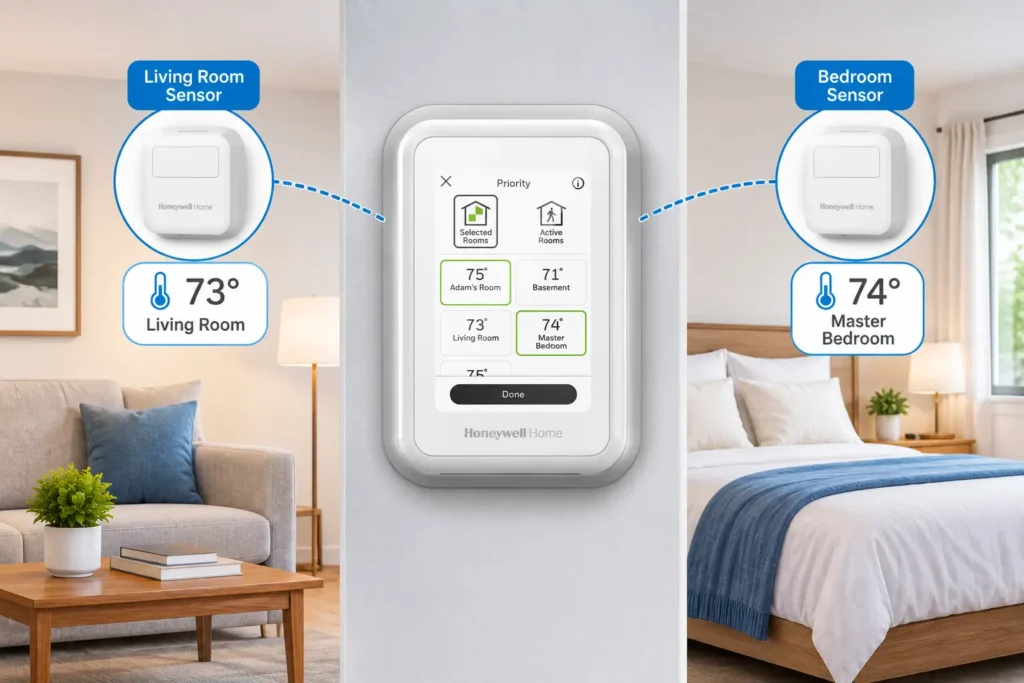
On a Honeywell T9, room priority decides which Smart Room Sensors the thermostat reads when it works out whether your home needs heating or cooling. You can let it follow whichever rooms have people moving in them, or pick the rooms yourself. Active rooms suit the daytime. Hand-picked bedrooms suit the night.
Honeywell’s support article on room prioritization describes it as choosing which rooms the thermostat should focus on. If you pick several rooms, the thermostat heats or cools based on their average temperature.
What you need first
- At least one wireless Smart Room Sensor paired to the T9. The Priority menu appears on the thermostat only when wireless sensors are in use. A T9 without sensors cannot prioritise rooms.
- A sensor paired to only one thermostat. If a sensor was used on another thermostat, remove it there before pairing it with this one.
- The Resideo app if you want to set priority by schedule period from your phone. Geofencing can only be turned on in the app.
The T9 thermostat itself has no motion sensor and is often mounted in a hallway. Honeywell’s guide therefore leaves it out of active-room priority.
Active rooms or selected rooms
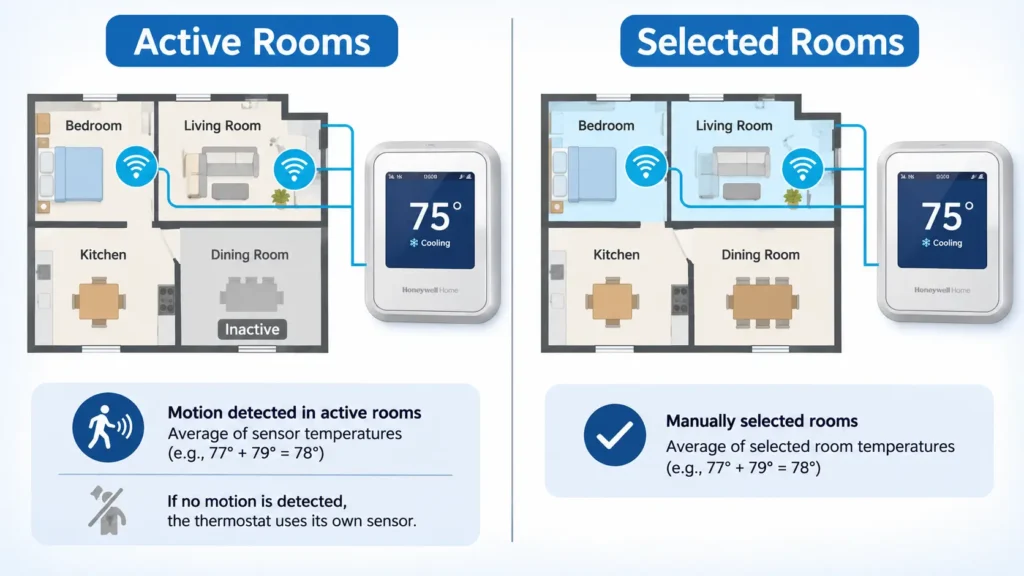
The T9 gives you two ways to choose which sensors count.
| Active rooms | Selected rooms | |
| What it uses | Sensors that currently detect motion | Sensors you choose by hand |
| Best for | Daytime, when people move between rooms | Fixed targets, such as bedrooms overnight |
| With several rooms | Averages the rooms that detect motion | Averages the rooms you selected |
| If nobody is detected | Falls back to the thermostat’s own sensor and ignores the remote sensors | Not applicable, because your chosen rooms always count |
Honeywell’s user guide recommends selected rooms, normally the bedrooms, for the Sleep period. Active rooms depend on motion, so a bedroom with someone sleeping still in it may not register.
Averaging also means a prioritised room does not get exact control. If you select two rooms that differ by several degrees, the thermostat aims for the average of the two. A room you left out can end up warmer or cooler than your set point.
How to set priority on the thermostat
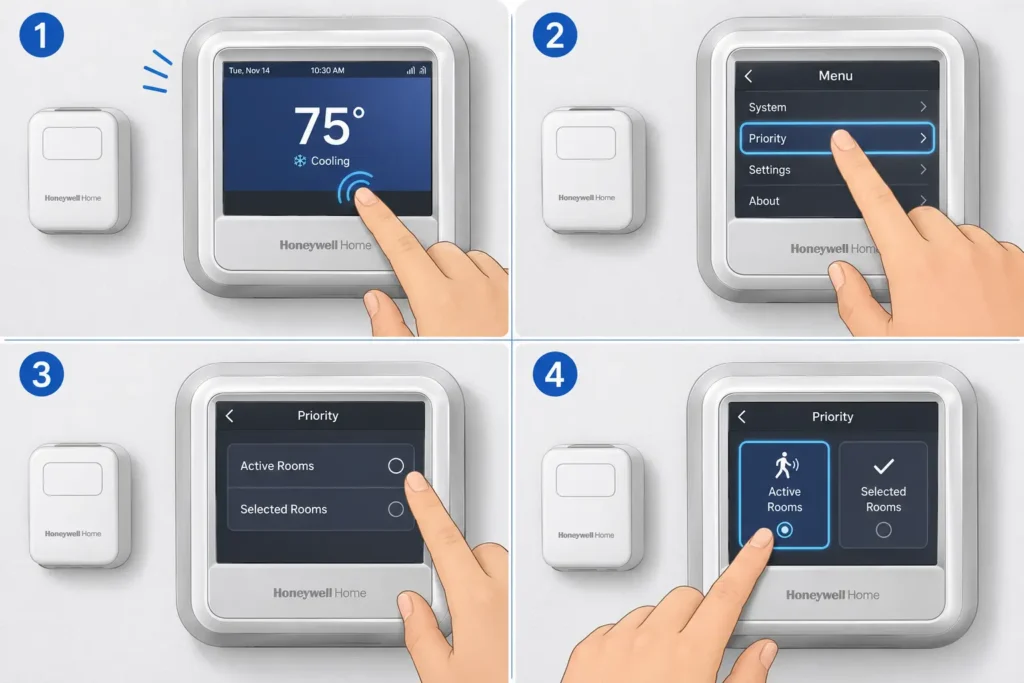
- Touch the screen to wake the thermostat.
- Touch the Menu icon.
- Select Priority. If you don’t see it, no sensor is paired.
- Choose active sensors (the ones detecting motion) or select the sensors you want to use manually.
To set priority for a schedule period, go to Menu > Schedule, create a new schedule, and touch priority for each period to choose its sensors.
The home screen shows the current priority type and how many rooms are being prioritised, so you can check that your choice took effect.
How to set priority in the Resideo app
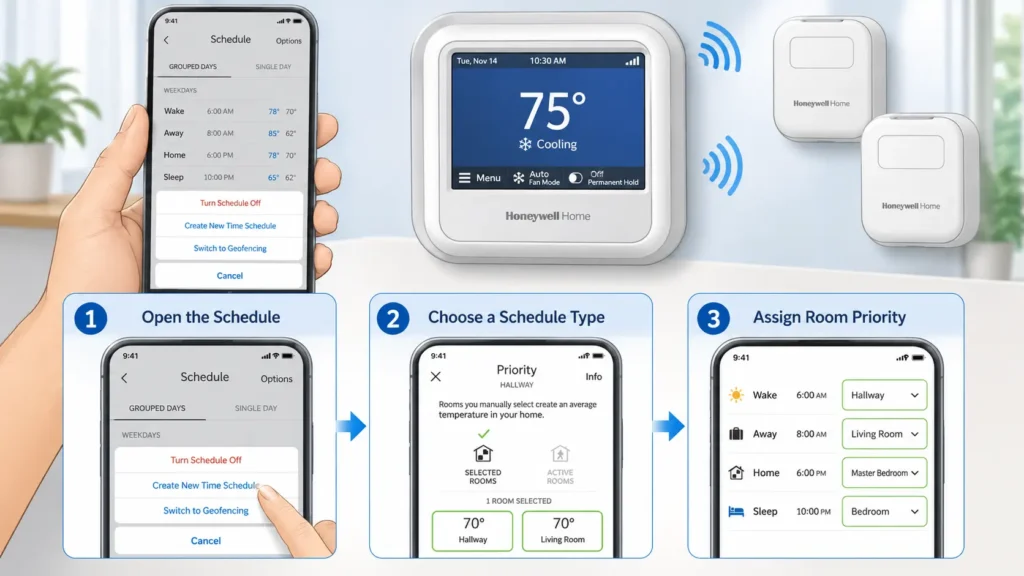
- Select your thermostat, then touch the calendar icon at the lower right.
- Choose Grouped days or Single day.
- Tap Options if you need to turn the schedule off, use a time-based schedule, or switch to geofencing.
- Set the priority sensors for each program period.
Priority can be set per period (Wake, Away, Home and Sleep) and for manual changes. App menus change between versions, so follow the labels on your own screen if they differ.
How active rooms detect motion
Honeywell’s guide gives these figures for active-room priority:
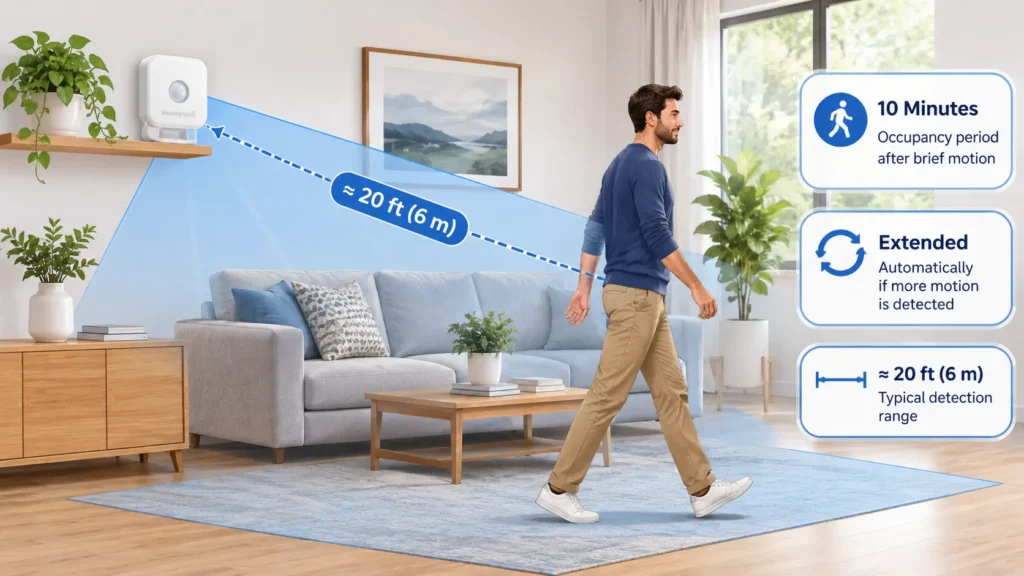
- The sensor’s motion detector has a typical range of about 20 feet (6 m). Height, clothing and angle can affect this.
- Briefly passing through a room keeps it counted as occupied for 10 minutes. A longer stay extends that time automatically.
- Once motion is sensed, priority is assigned within about 3 seconds, depending on battery and signal strength.
- When people leave, the room stays active until the timeout ends.
If a room is not registering, open Devices & Sensors, select the sensor, and adjust Motion Sensitivity. Also check that the sensor is placed where people actually move.
If priority is not behaving as expected
- No Priority option in the menu: No wireless sensor is paired to this thermostat.
- A room never counts: Check the sensor’s motion sensitivity and position, and confirm it is paired to this thermostat and not another.
- Still unclear: Contact Honeywell Home support on 1-800-633-3991 (US), as listed in the user guide.
Instructions here follow Honeywell’s T9 user guide 33-00478-04 for T9 models with Smart Room Sensors sold with US and Canadian documentation. Other regions or older firmware may differ.
Sources
- Honeywell Home: What does room prioritization mean on the T9/T10 (last updated 2 September 2025)
- Resideo: T9 Smart Thermostat page with user and installation guides
- Honeywell Home, T9 Smart thermostat with Smart Room sensor User Guide, document 33-00478-04